
This guide provides a step-by-step walkthrough on how to use OBDSTAR ECU Master, covering registration, login, software update, and password reset.
1.Download ECU Master Software
Go to [https://www.obdstar.com/DownloadStd_Downloadcenter.html]
Download ECU Master PC software.
Operating system: Windows 10 or above.
Language: English, Chinese
2.Create Your Account
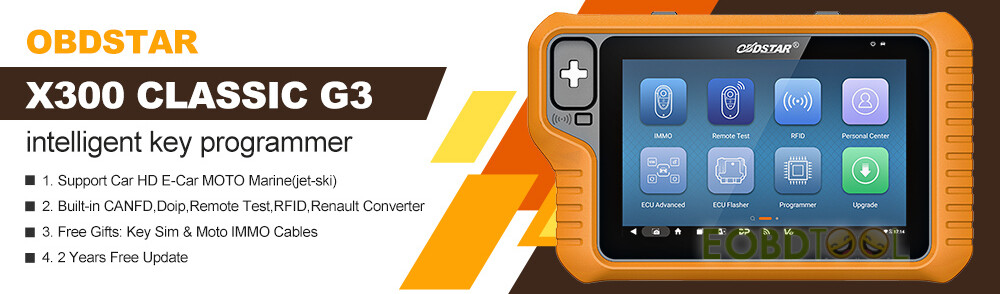
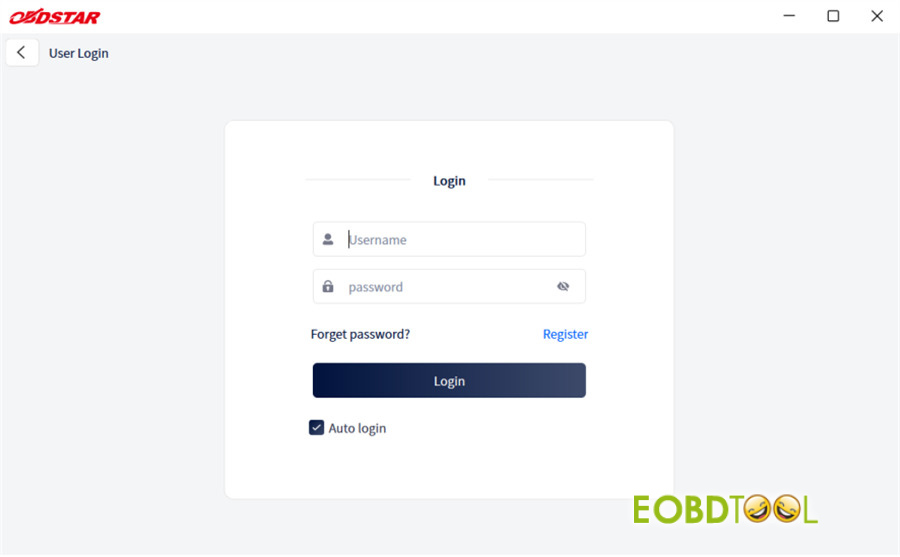
Open the portal: Head to the app interface and tap [Personal Center] icon to open the login screen.
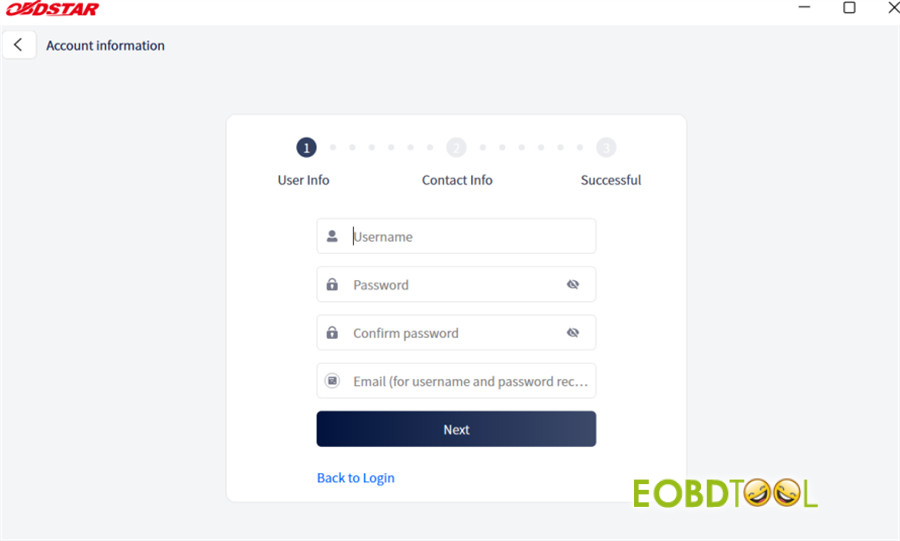
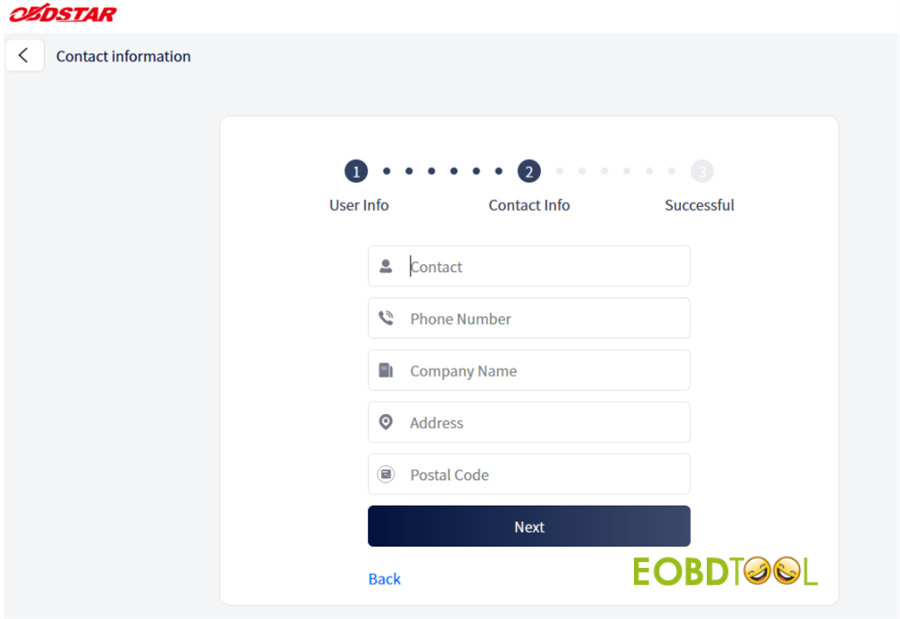
Sign up: Tap Register in the bottom right corner of the screen.
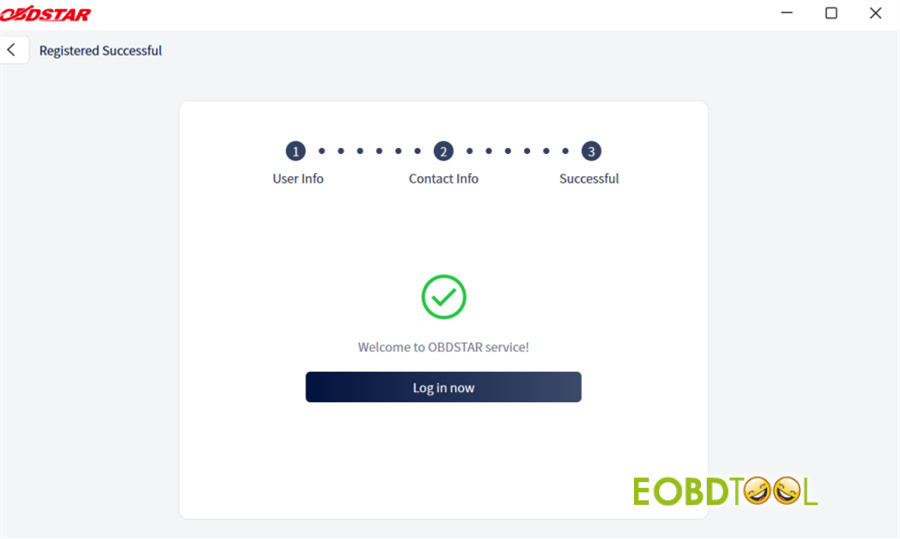
Submit details: Fill in the required fields. Once the confirmation message pops up to let you know registration was successful, tap [Log in now] to access your dashboard.
3. Log In & Reset Passwords
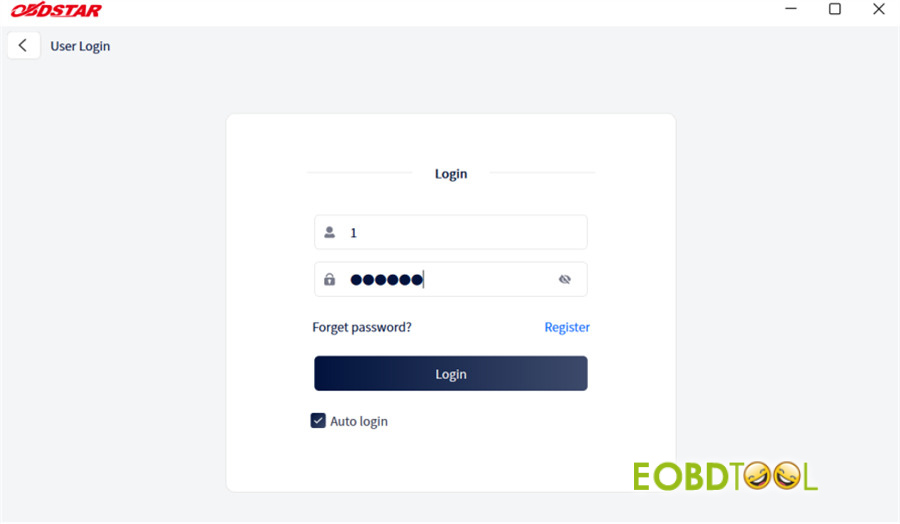
If you are already registered, just enter your username and password, then hit [Login].
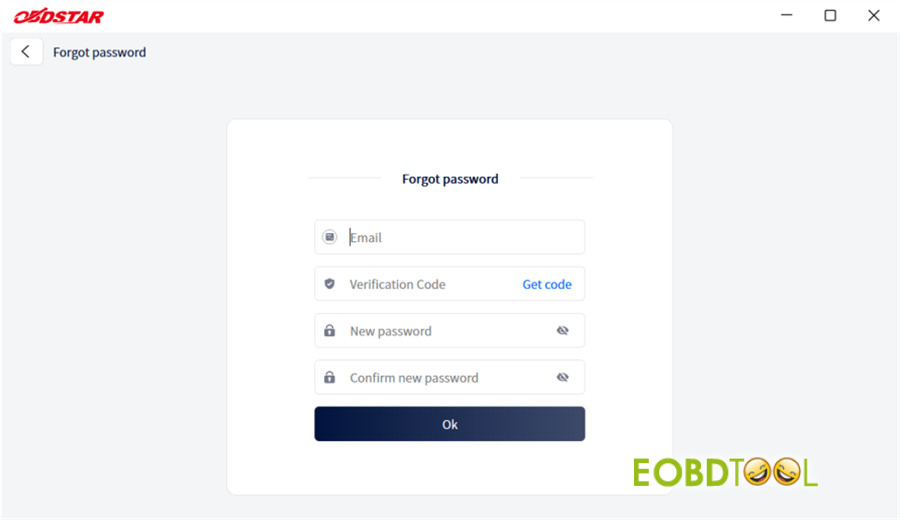
If you forget your password, click [Forget password?] link on the login page. Follow the prompts to verify your identity and establish a new password securely.
4. Manage “My Info” & Finding Your Dealer
Once inside the Personal Center, your core profile details are instantly accessible.
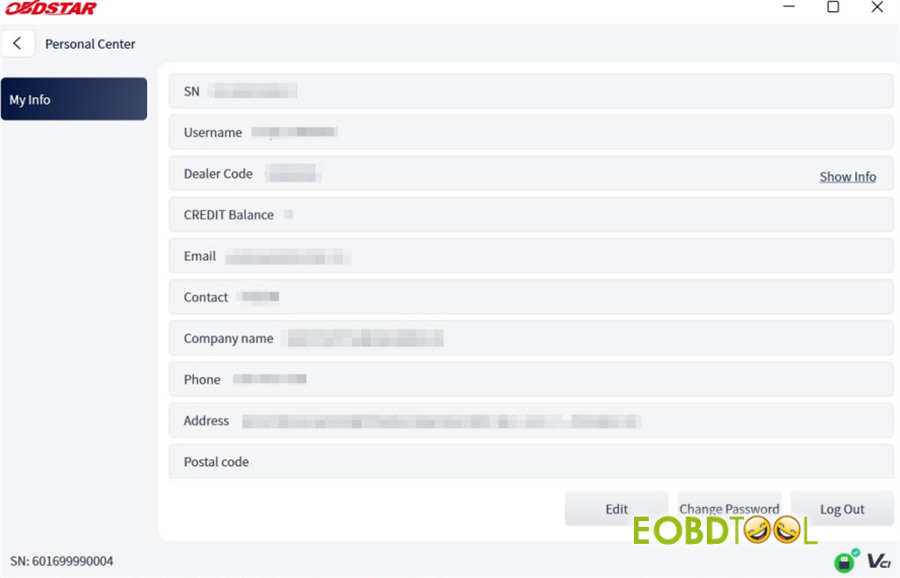
From this screen, you can manage your contacts or change security settings:
- Technical Support:Click [Show Info] right next to the “Dealer Code” field to instantly view the direct contact details for your assigned equipment distributor.
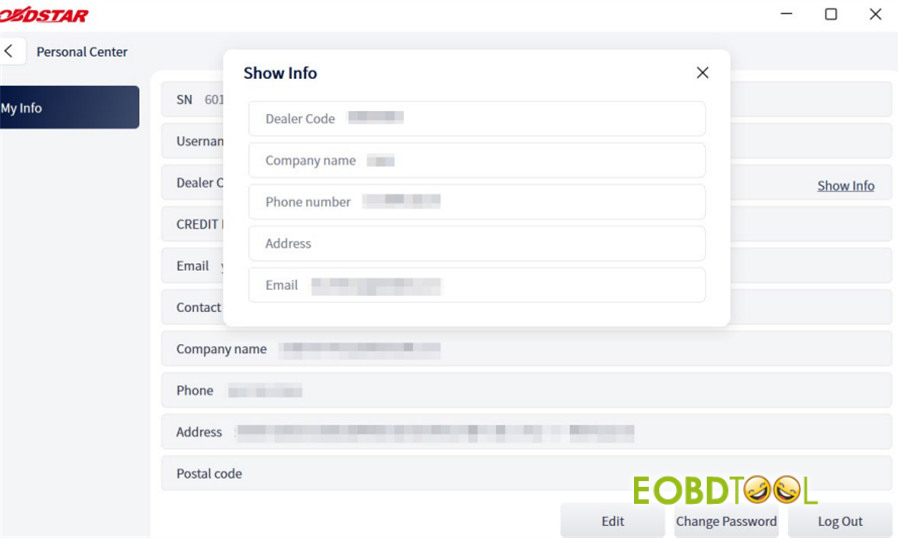
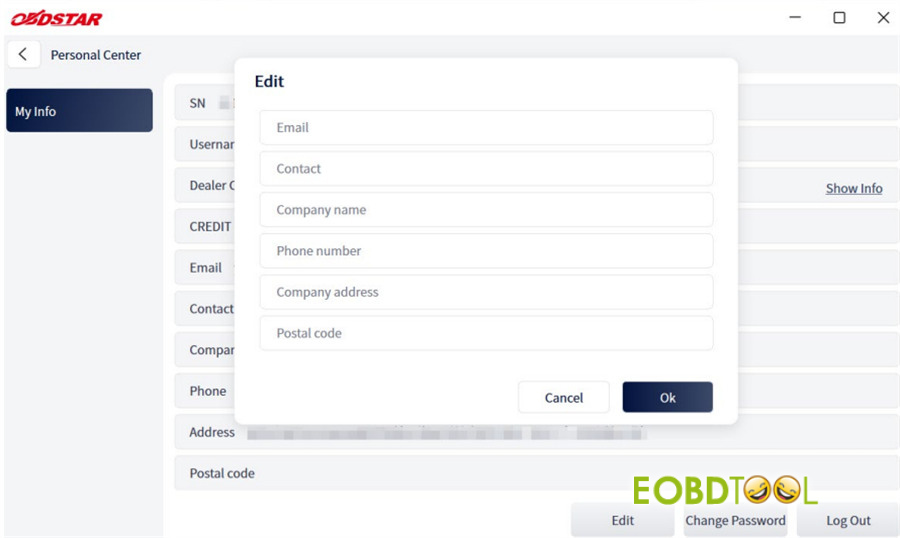
- Update Profile Details:Tap [Edit] at the bottom of the My Info screen to refresh your personal contact info.
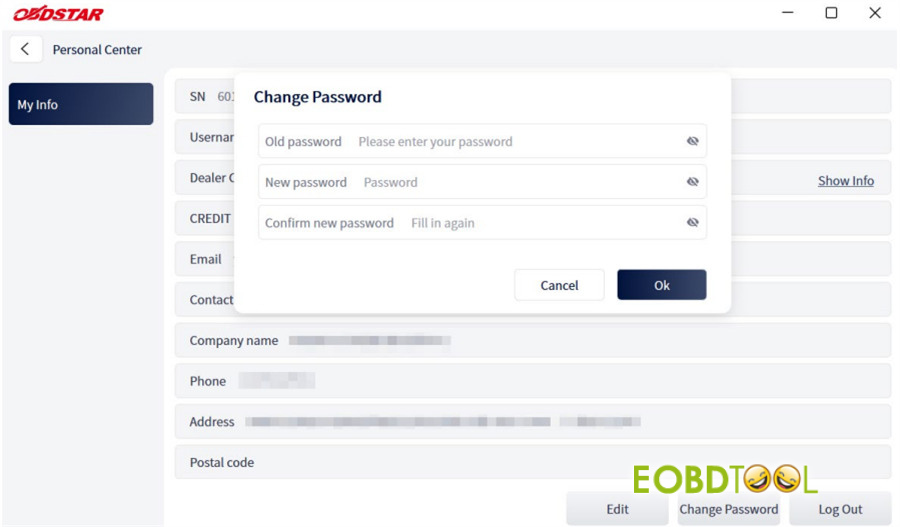
- Security Updates:Click [Change Password] at the bottom of the My Info screen to modify your password.
5.Update OBDSTAR ECU Master Software
Step 1: Authenticate First
Always make sure you are logged into your account before attempting an update.
Step 2: Review Available Updates
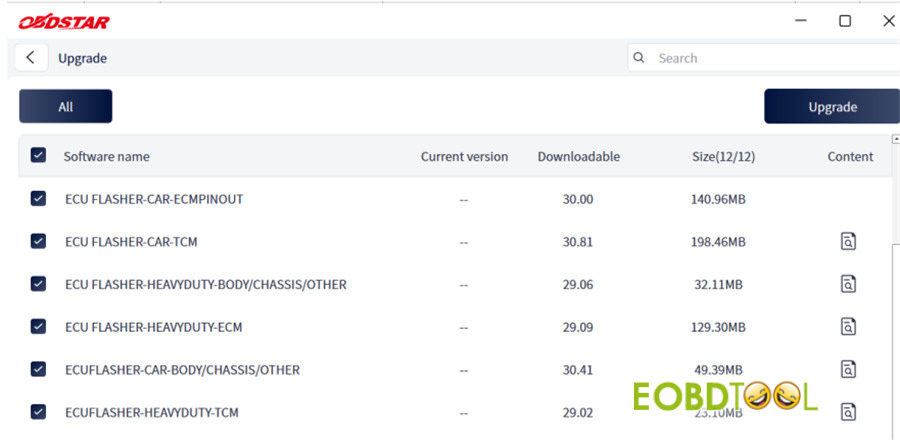
Navigate to the Upgrade main dashboard. The software automatically checks for updates and pre-selects all available options by default.
Step 3: Customize Your Download
If there are optional vehicles or data packages you don’t need, simply uncheck the box next to their names.
Note: Essential system files feature a grayed-out checkbox—these are mandatory core files required for tool stability and cannot be deselected.
Step 4: Search & Destroy Bugs
Save time by typing keywords, vehicle makes, or software letters into the Search Bar in the upper-right corner to find specific packages instantly.
Step 5: Inspect Release Notes
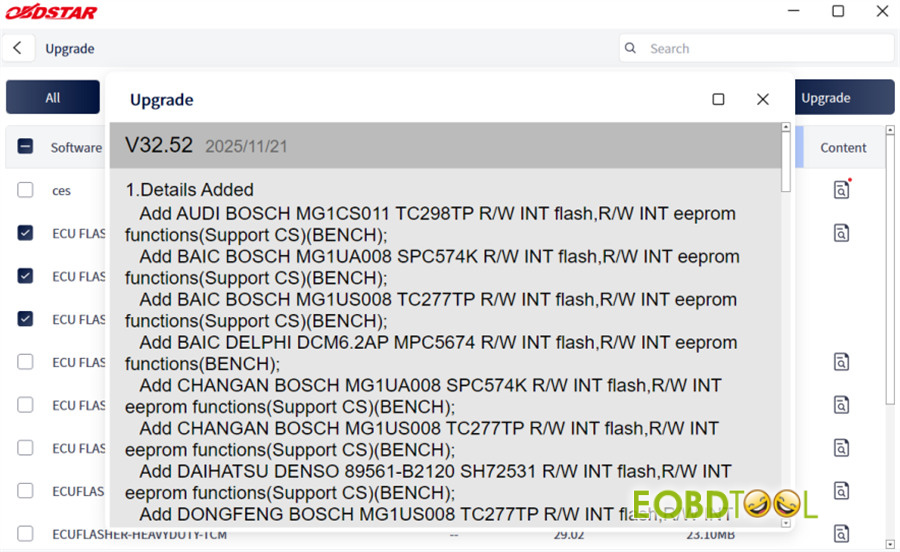
Click the information icon in the final column of any software entry to read the specific version update details and release history.
Step 6: Run the Installer
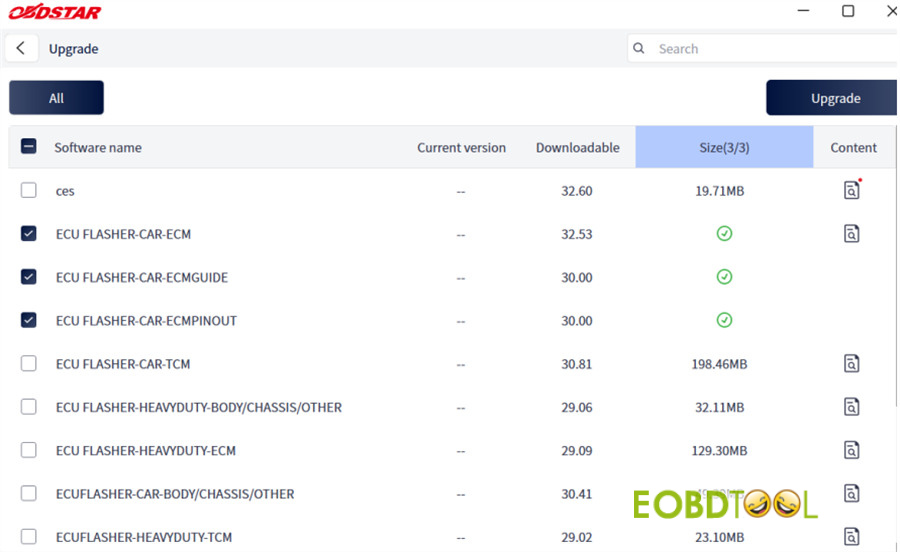
Once your selections are finalized, tap the [Upgrade] button in the upper-right corner to initiate the download pipeline.
Pro-Tip: If you click the upgrade button again while a download is running, the system will gently remind you: “Downloading. Please try again after the download finishes.”
Learn more:
OBDSTAR ECU Master Is Coming Soon – First PC-Based ECU Flasher
OBDSTAR ECU Master Is Coming Soon – First PC-Based ECU Flasher
OBDSTAR DC706 vs. OBDSTAR ECU Master: A Side-by-Side Comparison
OBDSTAR DC706 vs. OBDSTAR ECU Master: A Side-by-Side Comparison
UK Professional OBD2 Tools Online Shop