


Updating your MUCAR 892BT Pro takes just a few minutes and gives you access to the latest vehicle coverage and maintenance functions—completely free for the life of the tool. Whether you are setting up a new scanner out of the box or doing a monthly software check, this step-by-step guide shows you how to connect to Wi-Fi, run system and firmware updates, and batch-download vehicle packages.
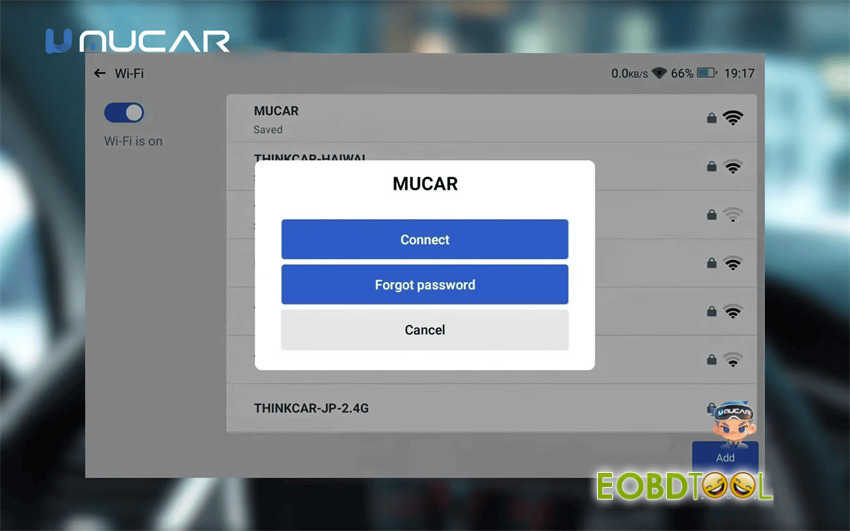
Step 1: Connect to Wi-Fi First
Before doing anything else, link your MUCAR 892BT Pro tablet to a working Wi-Fi network.
Just plugging the tool into a car’s OBD port won’t give it internet access for downloads.
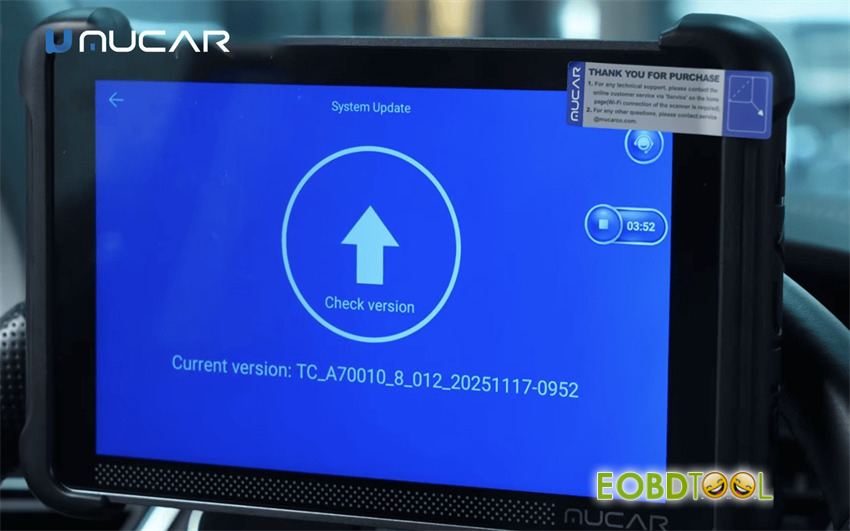
Step 2: Run Firmware Fixes & System Updates
The update menu is split into two separate tools:
- Firmware Fix (Settings > Maintain > Firmware Fix):Use this if you need to fix hardware communication tools, set up USB mode, or use remote assistance.
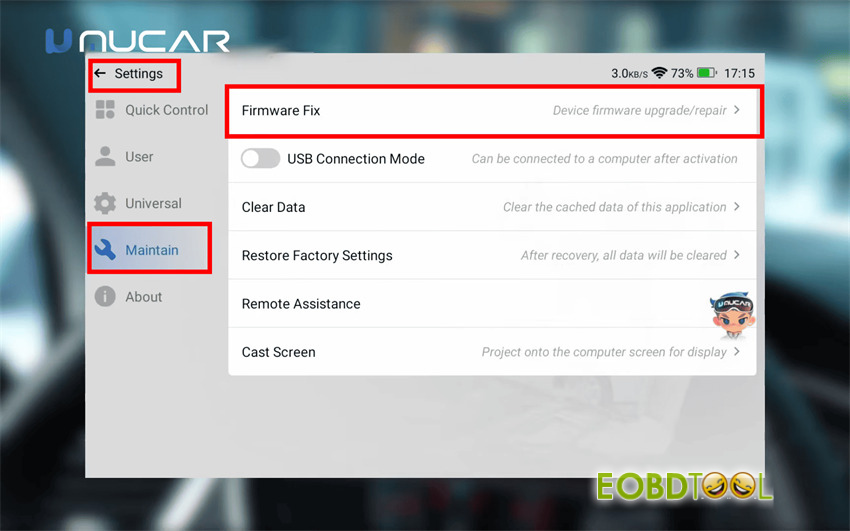
- System Update (Settings > About > System Update):This is where you grab the latest operating system updates for the tablet itself.
Step 3: Grab Your Car & Service Software
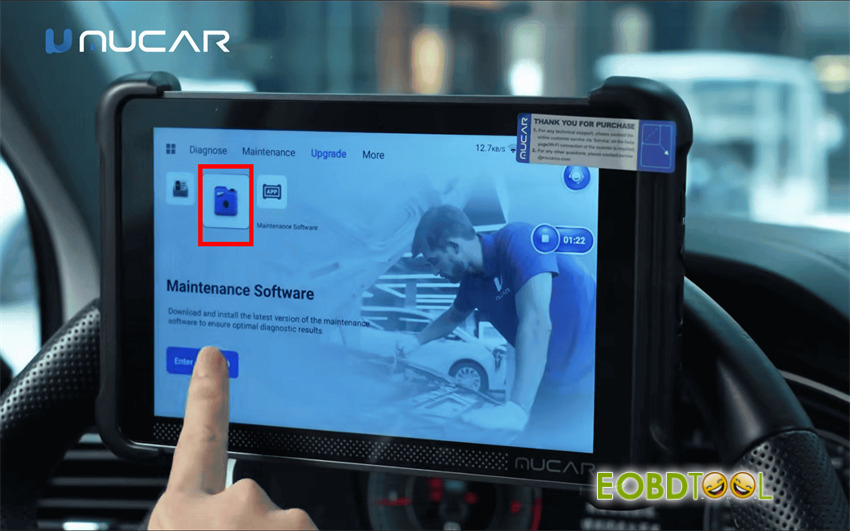
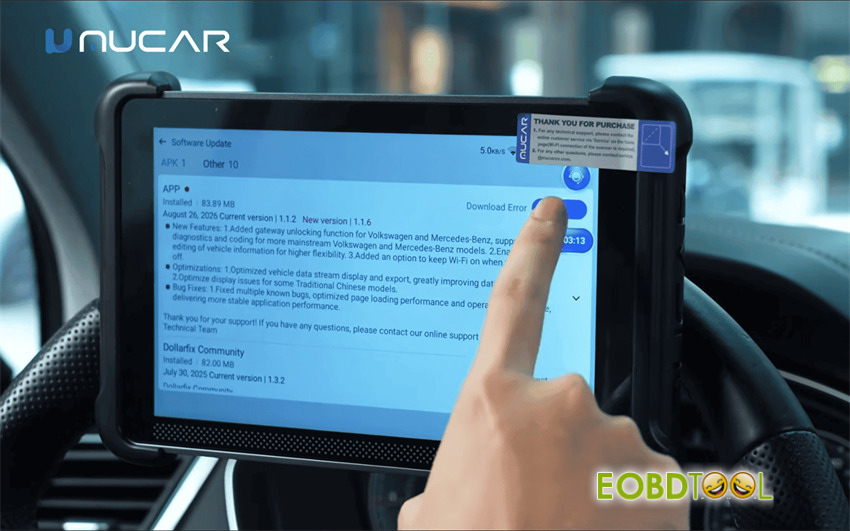
Open up the Upgrade Center.
Your MUCAR tool typically supports around 87 car brands and 34 maintenance functions
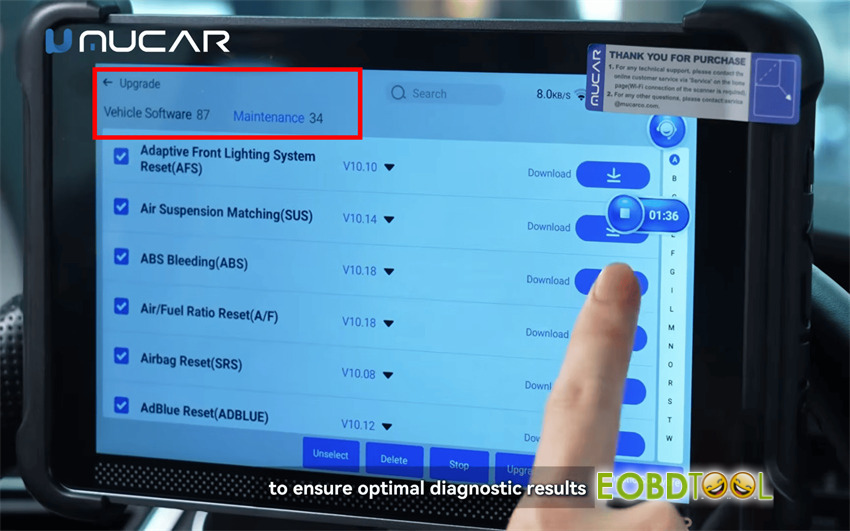
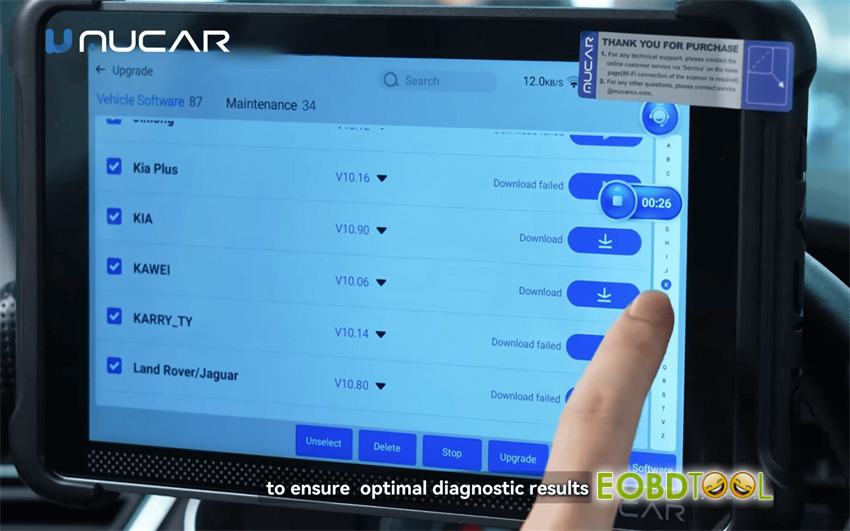
- Batch Car Downloads:Instead of tapping brands one by one, you can select multiple car makes and let them download in a batch.
- Service Functions:Make sure you grab your reset apps, such as Gearbox Learning, ABS Bleeding, Injector Coding, and IMMO matching, as you need them.
Always take a quick look at the changelogs so you know what new features or bug fixes are included in the latest release.
Quick FAQ
- Do I really need Wi-Fi?
Yes, vehicle diagnostic cables only talk to the car—they don’t bring in internet traffic. You need a Wi-Fi connection.
- Are System Update and Firmware Fix the same thing?
Nope. System Update updates the tablet’s OS, while Firmware Fix manages device repair tools and connection settings.
- How often should I check for updates?
Once a month is a good rule of thumb, especially if you work on a wide variety of car brands.
- Can I download more than one car brand at a time?
Yes! Check off multiple brands and queue up a batch download.
- Does this work for all MUCAR scanners?
The steps match the standard MUCAR layout, though button names might vary slightly depending on your exact model.