


Learn how to easily switch the display language to your preference on MUCAR 892BT PRO diagnostic scanner.
Steps to Change the Device Language
1.Power on your MUCAR 892BT PRO device.
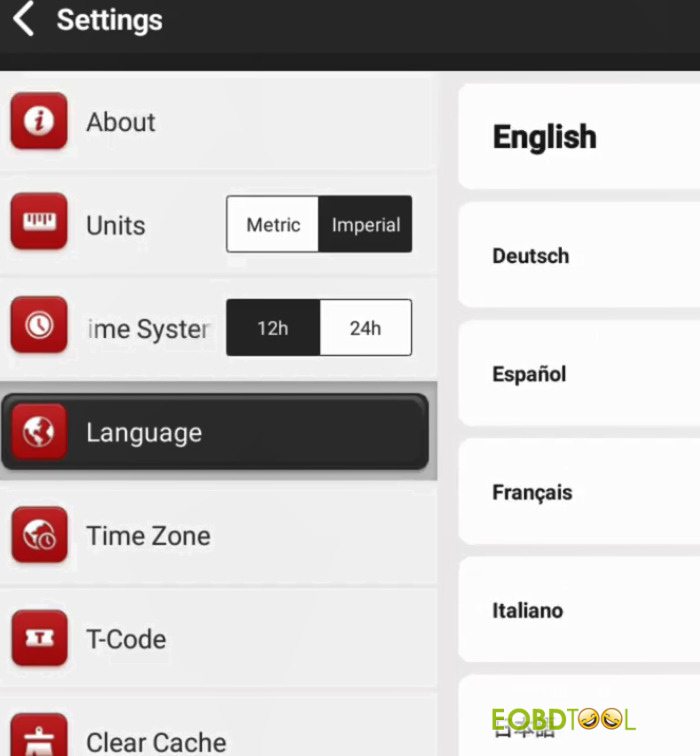
2.On the main home screen, locate and tap on Settings (or the gear icon).
3.Scroll down and select Language.
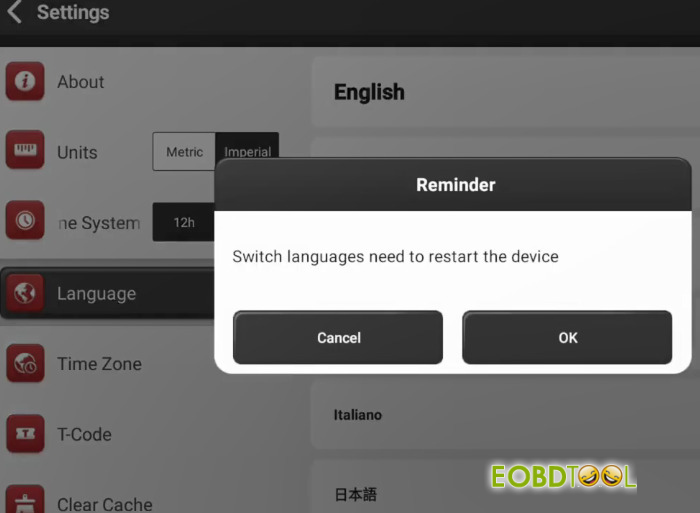
4.Browse the list and select your desired language
- 28 Languages supported:
English, German, Spanish, French, Italian, Portuguese, Japanese, Russian, Polish, Turkish, Dutch, Hungarian, Traditional Chinese, Korean, Greek, Slovak, Romanian, Arabic , Croatian, Slovenian, Finnish, Czech, Swedish, Danish, Persian, Serbian, Vietnamese, Bulgarian
5.The device interface will immediately update to the chosen language.
Updating Diagnostic Software for Multi-Language Support
If specific vehicle diagnostic menus or functions remain in English or another default language after changing the device setting, you may need to update your vehicle software packs:
1.Connect MUCAR 892BT PRO tablet to a Wi-Fi network.
2.Tap the Upgrade / Update menu from the main screen.
3.Select all available vehicle brand software updates and tap Update.
4.Once downloaded, the diagnostic software will display in your chosen language.
(Note: MUCAR 892BT PRO also features a standalone Language Change function under its 34+ Reset/Maintenance services menu, which is used to reset or match the language on the target vehicle’s instrument cluster, not the tablet itself).
Read also:
How to Use Topology Map and EVAP Diagnosis by MUCAR 892BT Pro?