




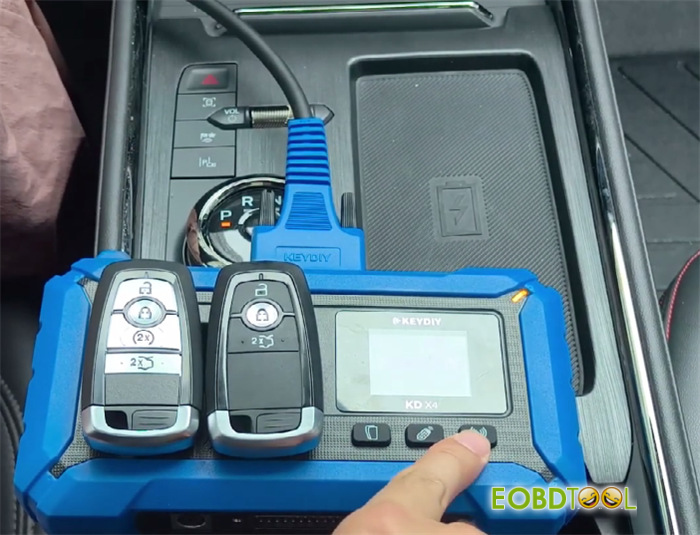
Today, we are going to walk you through the step-by-step process of programming a spare key for a May 2024 Ford Mondeo using KEYDIY KD–X4 5-in-1 Key Programmer and KD ZB21-4 Smart Remote. This bench-to-OBD method applies seamlessly to both duplicate key adding and all-keys-lost (AKL) scenarios.
Step1: Removing the BCM and Reading IMMO Data on Bench
Before any programming can take place, we must extract the vehicle’s anti-theft security data.
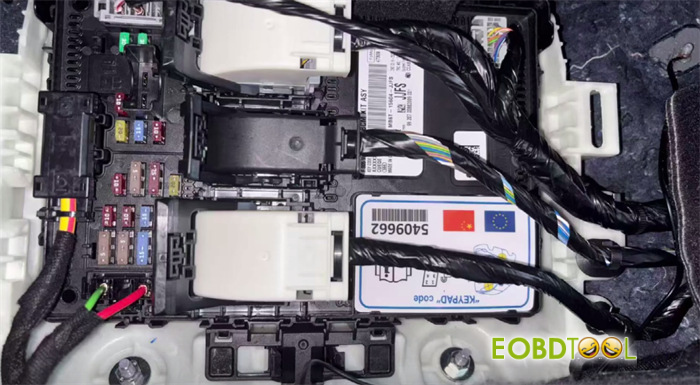
1.Locate and Remove the BCM:
The Body Control Module (BCM) on this vehicle is located underneath the front passenger seat. Carefully remove the module from the car.
2.Set Up the Hardware:
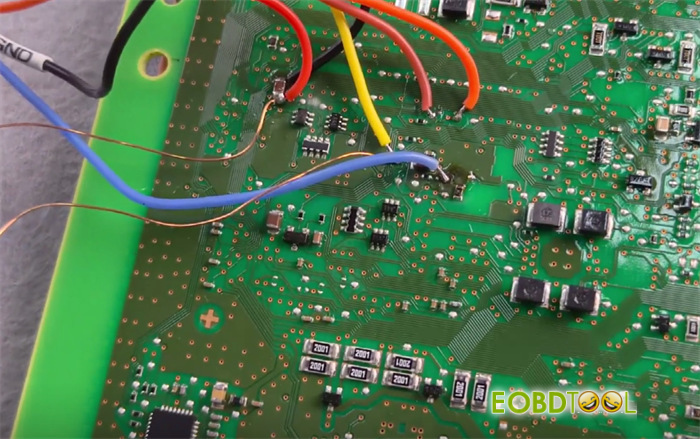
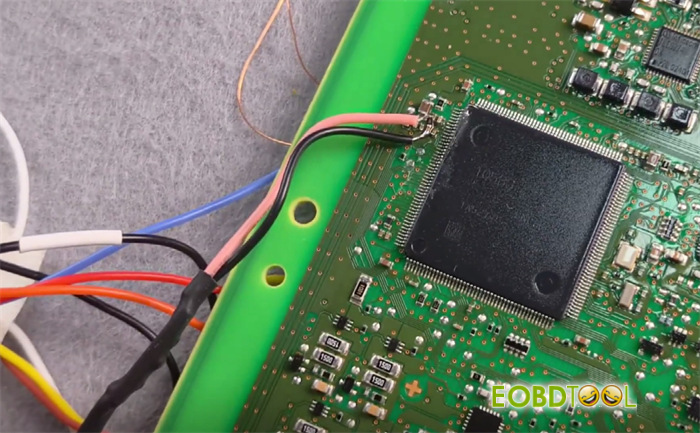
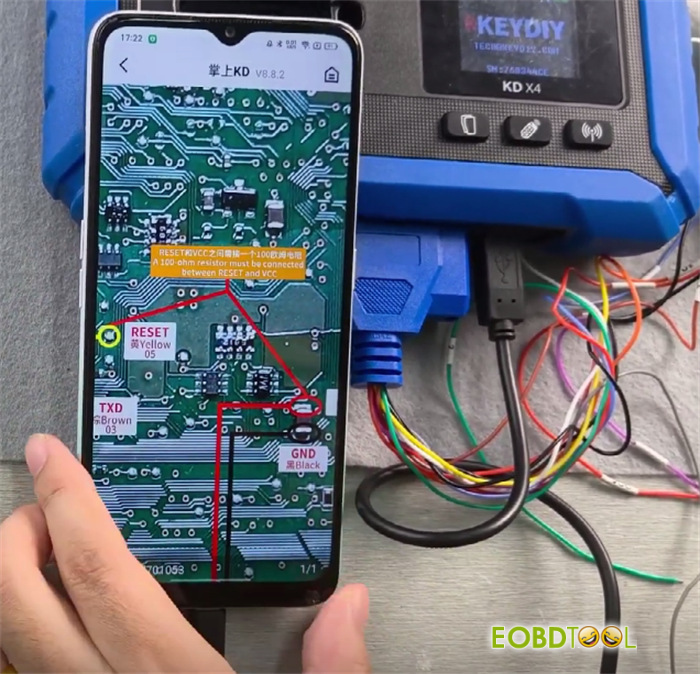
Connect the programming wires to the BCM points following the official application wiring diagram. Next, bridge your mobile phone to the tool using an OTG cable.
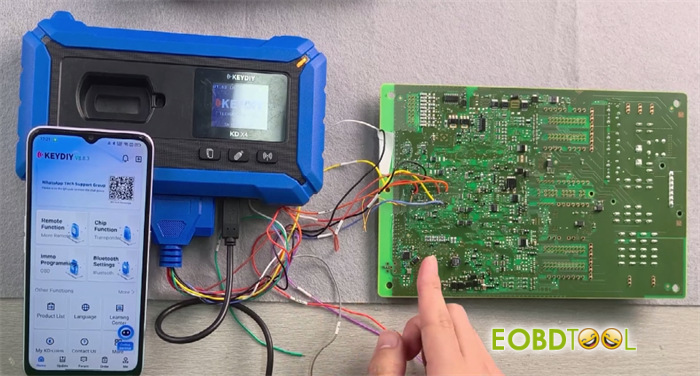
3.Navigate the App Menu:
Open KEYDIY software interface
Go to the corresponding directory
Select Immo Programming-> KD-X4/KD prog mini-> Read file-> IMMO-> Ford-> BCM_R7F701053 (based on the immobilizer chip type)
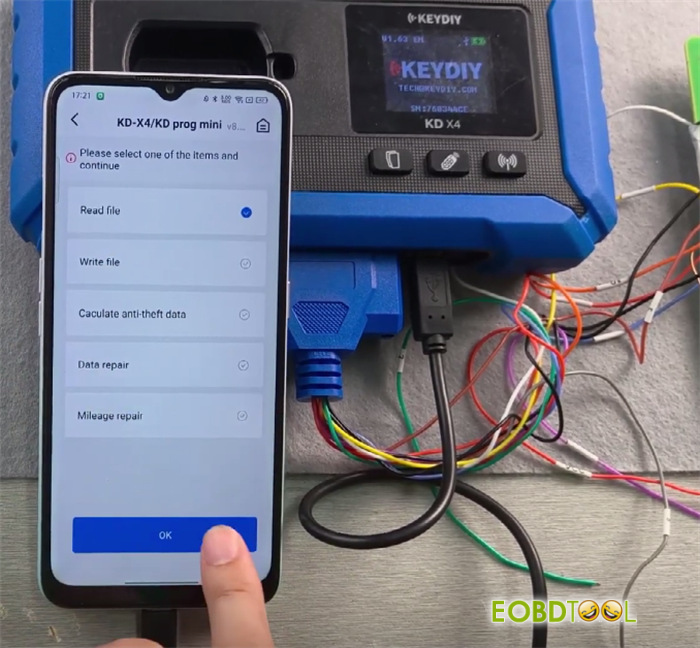
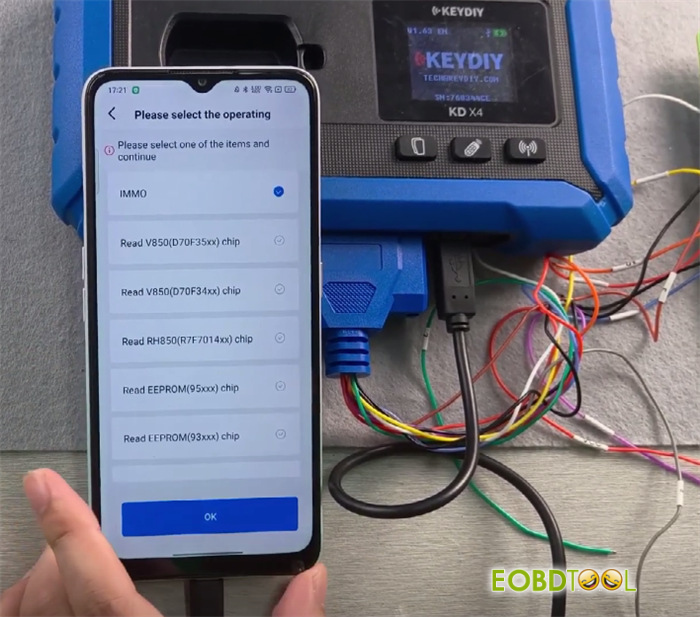
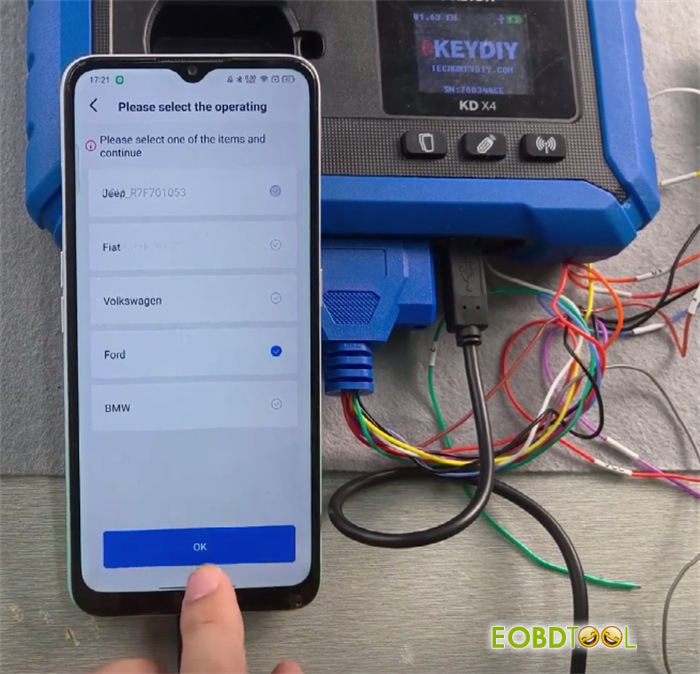
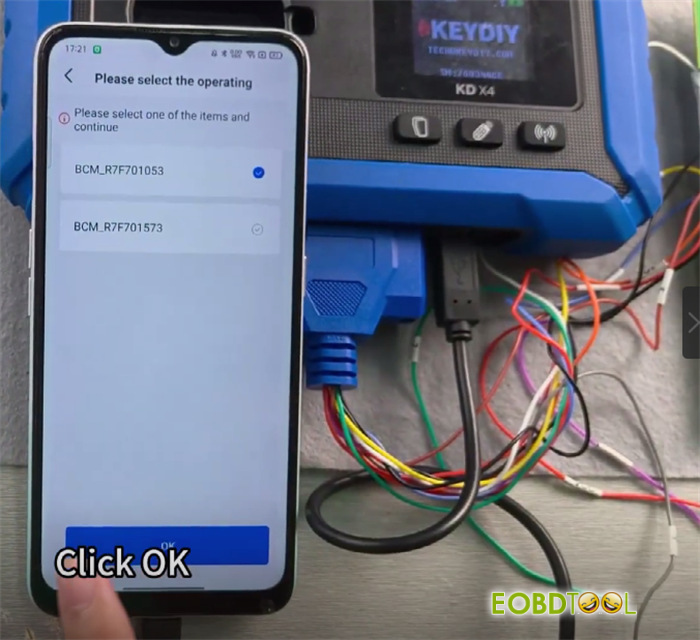
Crucial Bench Solder Notes:
- You mustbridge a 100-ohm resistor between the yellow indicator point and the red solder joint before attempting to read the chip data.
- If the software encounters a read failure, try soldering an additional 1-ohm resistorat the pink solder joint location to stabilize the communication lines.
1.Execute Data Read:
Once the resistors are securely in place, switch back to the English version of the app and click Start Execution.
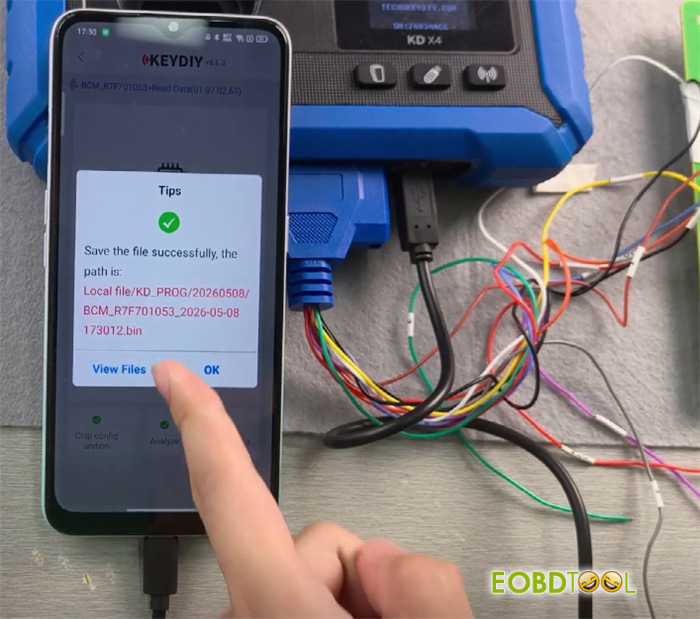
2.Save the Dump:
After a successful read, save the data file directly to your device storage. There is no need to generate a separate modification file; this raw dump is ready to be loaded at the vehicle.
Step2: OBD Key Programming at the Vehicle
With the BCM security data safely saved, reinstall the module into the passenger side and move over to the vehicle’s cabin.
1.Preparation:
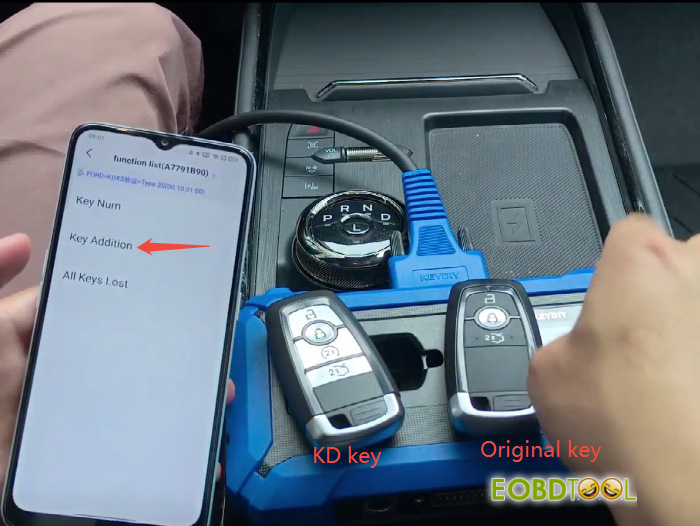
Ensure you have both the original working key and the newly generated KD ZB21-4 Universal Smart Remote Key on hand. Plug your OBD programming cable into the vehicle’s diagnostic port.
2.Initialize Connection:
Enter the corresponding menu path- Key Addition, switch on the vehicle’s ignition, and tap OK.
3.Load the Dump File:
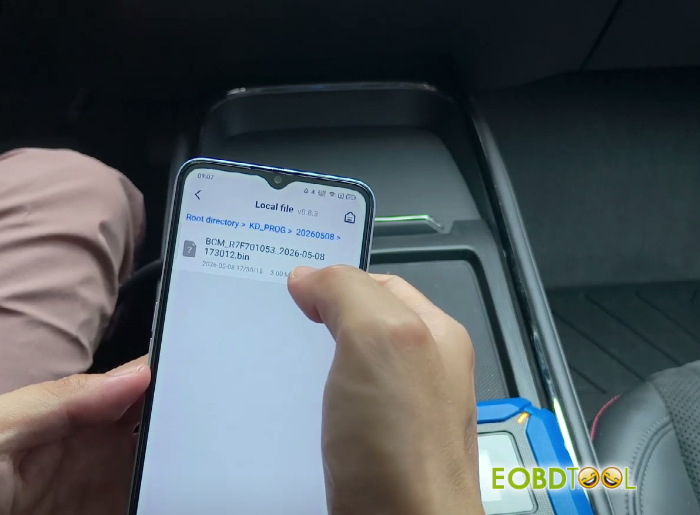
When prompted by the software, browse and select the BCM data file you saved on the bench.
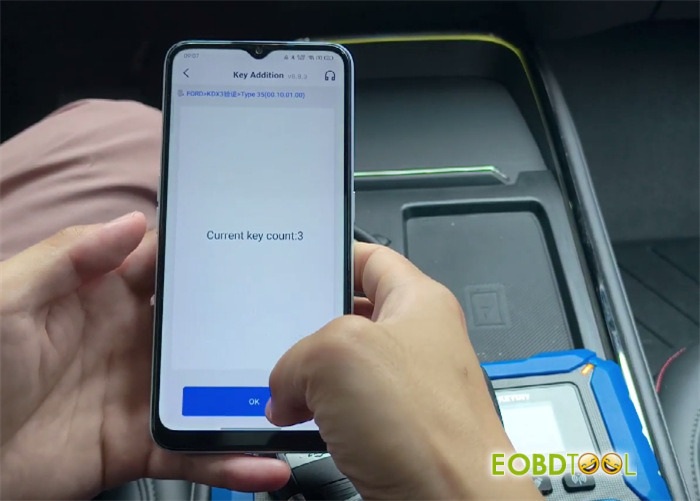
The screen will display the current key count (showing “3” keys registered).
4.Position the New Key:
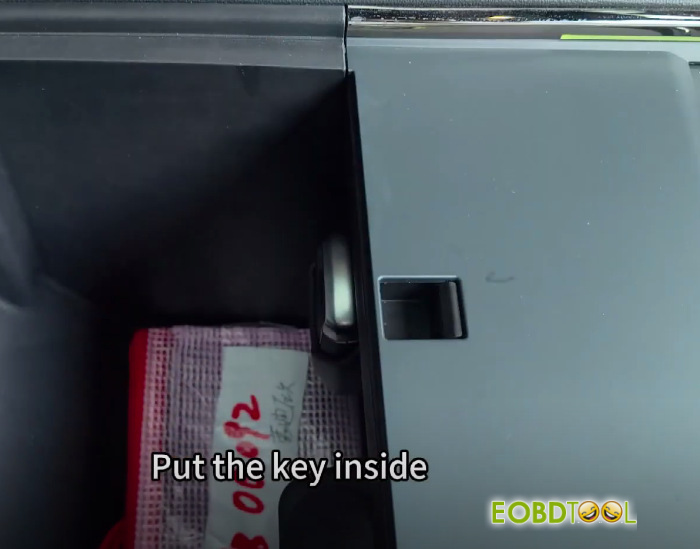
Open the center console armrest box and locate the emergency key induction slot. Place the new KD key directly into this slot and click OK to begin the learning cycle.
5.Verification:
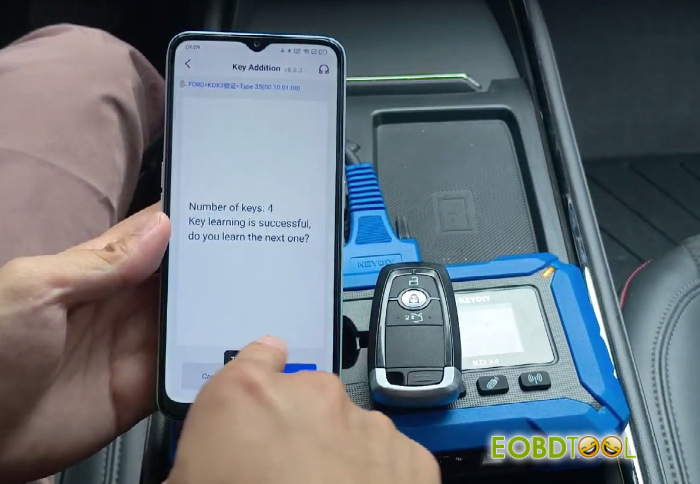
The vehicle’s hazard warning lights will flash dynamically, signaling a successful pairing. The screen will update the key count to “4”.
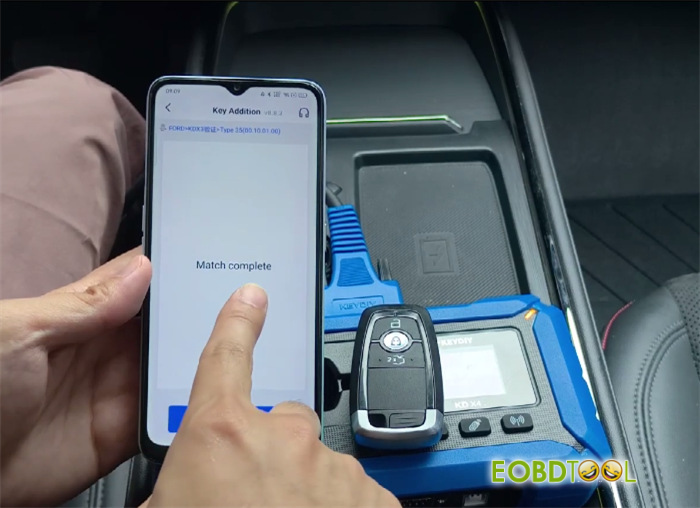
Since we only need to add one key, hit Cancel to exit the learning procedure.
6.Finalize:
Turn off the ignition and pull out your programmer. Test both the remote control buttons and the engine push-start function. The vehicle fires right up—job successfully completed!
Video guide: