






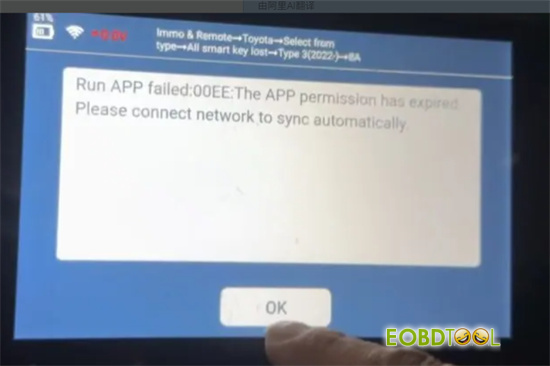
To perform a regular sync on your Lonsdor K518 PRO key programmer (often to fix errors like “Run APP Failed: 00EE: App permission has expired”), you can use follow the steps below to operate.
Step-by-step guide:
1.Connect K518 PRO to a stable Wi-Fi network.
2.Power on the device and navigate to the main menu.
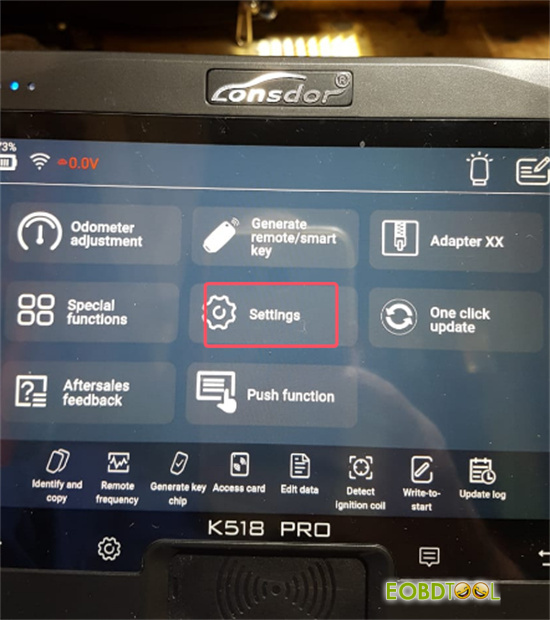
3.Select the “Settings” option from the menu.
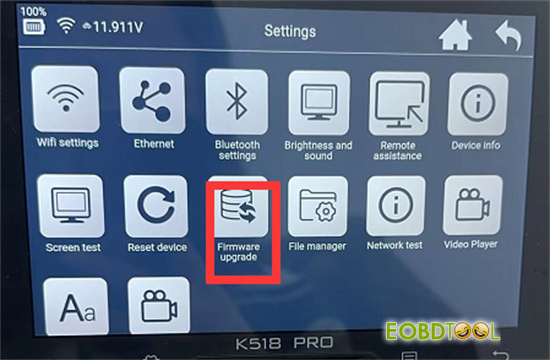
4.Choose ” Firmware upgrade”
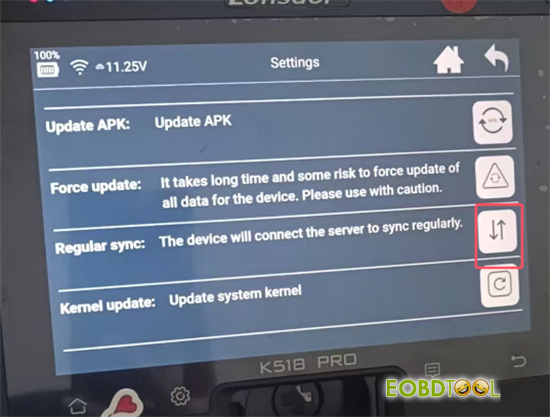
5.Then you can see the “Regular sync” option
Tap the corresponding arrows button, the device will connect the server to sync regularly
This method also applies to other K518 series key programmers.
Read also:
1.Lonsdor K518 Pro Check Paid Functions and Subscription Period Method
Lonsdor K518 Pro Check Paid Functions and Subscription Period Method
2.How to Fix Lonsdor K518 Pro FCV Forgot Password
3.How to Solve Lonsdor K518 Pro Lost IMMO Remote Menu
4.How to Solve Lonsdor K518 Pro Fcv Update Failed With Exception 1 Error 2?
How to Solve Lonsdor K518 Pro FCV Update failed with exception 1 error 2?
5.Lonsdor K518 Pro Failed To Copy File Solution
6. Lonsdor K518 Pro OBD Cable and Hardware Self Test Guide